Interface
Interface Overview
The RingShot interface is designed for quick, hands-free operation. This page walks you through every element of the main window.
Main Window Layout
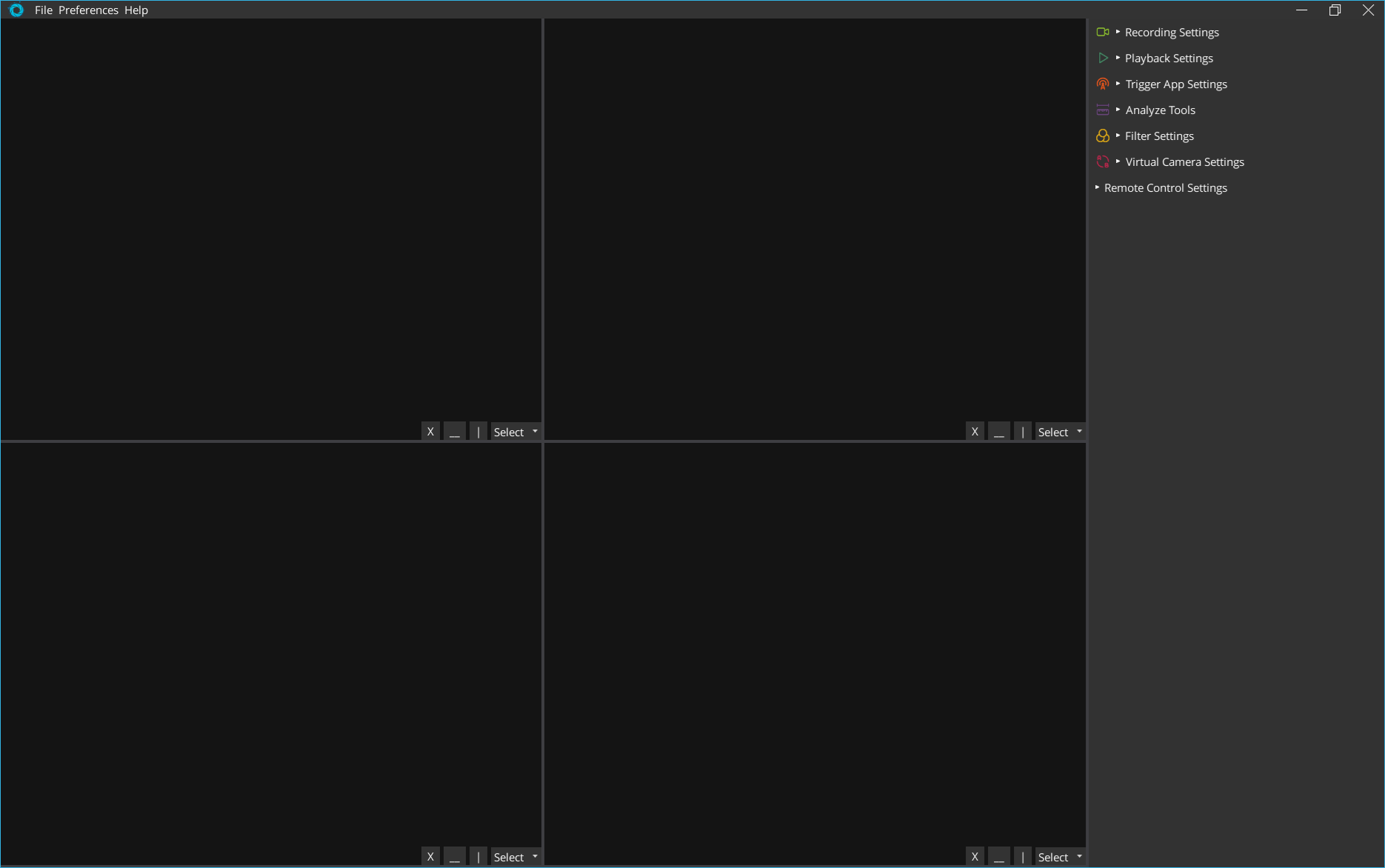
The RingShot interface consists of three main areas:
 1
2
3
4
5
1
2
3
4
5
| # | Element | Description |
|---|---|---|
| 1 | Menu Bar | Access File (new camera window, quit), Preferences (interface and performance options), and Help (updates, license). |
| 2 | Camera Viewport Grid | Shows live camera feeds or playback in a flexible grid layout. Default is 2×2 for 4 cameras. |
| 3 | Settings Sidebar | Collapsible panels for all system settings: Recording, Playback, Trigger, Analyze, Filter, Virtual Camera, and Remote Control. |
| 4 | Viewport Split Controls | The | button splits the viewport vertically, and the __ button splits it horizontally. Use these to create custom layouts like 1×4 for high-speed stripe mode. |
| 5 | Camera Select Dropdown | Assign a specific camera to each viewport panel. The X button closes the viewport. |
Viewport Layouts
RingShot supports flexible viewport layouts that you can create by splitting any panel:
Common Layouts
| Layout | Best For | How To Create |
|---|---|---|
| 2×2 Grid | Standard 4-camera setup (default) | Default layout on first launch |
| 1×4 Horizontal Strip | High-speed stripe mode (1440×240 @ 886 FPS) | Split the main viewport horizontally 3 times |
| 1×1 Full Screen | Focused single-camera view during playback | Close all but one viewport using the X button |
Tip — Multi-Monitor
For multi-monitor setups, use File → New Camera Window to open an additional RingShot window. Each window has its own freely configurable viewport grid, allowing you to display different camera angles on separate monitors — ideal for coaching and training environments.
Settings Sidebar Panels
The right-hand sidebar contains collapsible settings panels. Click on any panel header to expand it. Each panel is documented in detail in its own chapter:
Recording Settings
Resolution modes, FPS, ring buffer duration, and multi-camera sync.
Playback Settings
Speed control, slow-motion regions, replay cycles, and auto-playback.
Trigger App Settings
TriggerPod configuration, sensitivity, and autonomous mode setup.
Analyze Tools
Overlay guide lines, angles, grids, and measurement tools.
Filter Settings
Real-time image filters for brightness, contrast, and color correction.
Virtual Camera & Remote Control
Virtual camera output, remote control settings, and multi-monitor configuration.
Menu Bar
File Menu
- New Camera Window — Open an additional RingShot window with its own viewport grid (for multi-monitor setups)
- Quit — Close RingShot
Preferences Menu
- Auto Hide Interface — Automatically hide the settings sidebar and controls when not in use
- Limit Prefetch FPS — Limit the frame prefetch rate to reduce CPU usage when not actively reviewing footage
- Restore Defaults — Reset all preferences to factory settings
Help Menu
- Check for Updates — Check if a newer version of RingShot is available
- Upgrade License — Manage or upgrade your RingShot license